
Memory and Storage: Place Every Memory in the Hierarchy and Tell RAM, ROM and Storage Apart
Learn how registers, cache, main memory and secondary storage trade speed against cost and capacity, how RAM (SRAM and DRAM) differs from ROM and its kinds (PROM, EPROM, EEPROM, flash), how hard disks, tape, CDs, DVDs, Blu-ray, SSDs and pen drives store data, and how to convert units from bit to petabyte, through worked exam-style questions.
By the end of this lesson you will be able to place any memory in the hierarchy, tell volatile from non-volatile memory, name the kind of RAM or ROM a question describes, match a storage device to how it stores data, and convert between bits, bytes, KB, MB, GB, TB and PB. The core idea is one trade-off: the faster a memory is, the smaller and costlier per bit it is. That is why a computer uses several kinds of memory at once.
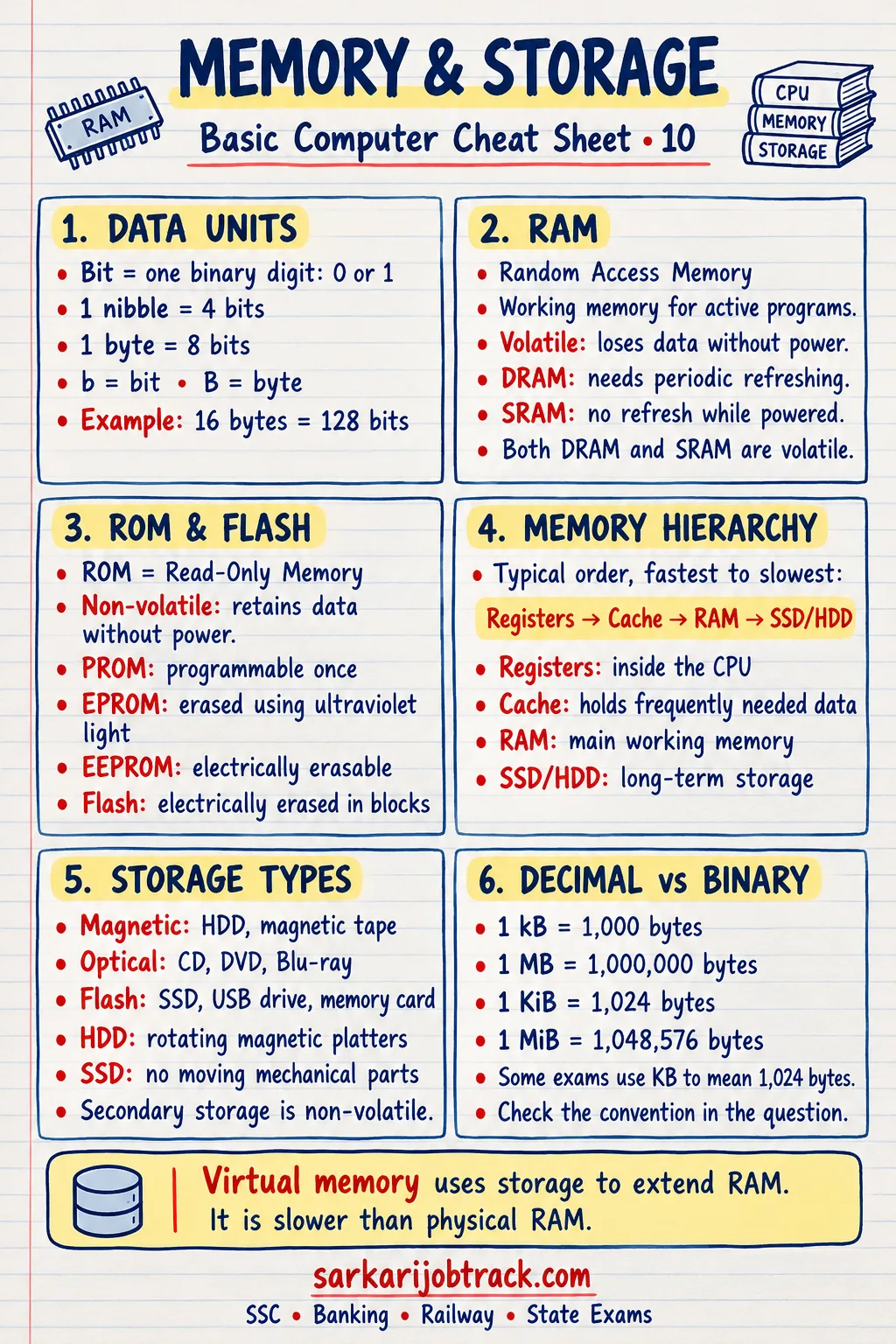
Short on time? Revise with the Memory and Storage cheat sheet
Already confident? Skip to practice: Memory and Storage quiz
Before this: you should know that main memory holds what the CPU is working on now and secondary storage keeps data permanently, as introduced in the Computer Fundamentals lesson. The Computer Hardware lesson showed the DIMM slots on the motherboard; this lesson is about what goes into them, and onto the drives.
Primary and secondary memory
- Primary memory (main memory) holds the programs and data being processed, and the CPU reads and writes it directly. It is of two types: RAM and ROM.
- Secondary memory (secondary storage, auxiliary memory) keeps data permanently. It is non-volatile, larger, slower and cheaper than main memory, and the CPU cannot access it directly: its contents are first brought into main memory. Hard disks, CDs, DVDs, SSDs, pen drives and memory cards are secondary storage.
The memory hierarchy
No single memory is fast, large and cheap at once, so a computer arranges its memories in a hierarchy: CPU registers, cache memory, main memory and secondary storage.
| Level | Where it is | Speed | Capacity | Cost per bit |
|---|---|---|---|---|
| Registers | inside the CPU | fastest | smallest | highest |
| Cache memory | between the CPU and main memory | very fast | small | high |
| Main memory (RAM) | on the motherboard (in a desktop, in DIMM slots) | fast | medium | medium |
| Secondary storage (hard disk, then magnetic tape) | drives and discs | slow | large | low |
Moving down the table, capacity grows and cost per bit falls, but access gets slower. Magnetic tape sits at the very bottom, used for backup where fast access is not needed. Registers are the CPU's own tiny storage inside the processor (see the Computer Fundamentals lesson), which is why they are the only level faster than cache.
Example 1: Which statement is wrong?
Question: Which statement about the memory hierarchy is NOT true? (a) Registers are located inside the CPU. (b) Cache memory sits between the CPU and main memory. (c) Moving down the hierarchy, capacity increases and cost per bit falls. (d) Main memory is faster than cache memory.
- (a), (b) and (c) are each true: they are the layout and the trade-off described above.
- Cache exists because main memory is too slow for the CPU, so cache is the faster of the two. (d) is false.
Answer: (d).
The principle: fix the order once (registers, cache, main memory, secondary storage, fastest first) and every "faster than" question becomes a lookup.
RAM: the working memory
RAM (Random Access Memory) is read/write memory: data can be stored in it and read from it, and any location can be reached directly. When a program starts, it is loaded into RAM.
RAM is volatile: as soon as the power goes, everything in it is wiped out. That is why unsaved work disappears in a power cut while files saved on the hard disk survive. Non-volatile memory keeps its contents without power: ROM, flash memory and all secondary storage.
SRAM and DRAM
| SRAM (Static RAM) | DRAM (Dynamic RAM) | |
|---|---|---|
| How a bit is stored | in a flip-flop circuit | as charge on a capacitor, with a transistor |
| Refreshing | not needed | needed constantly: the charge leaks away within milliseconds |
| Speed and cost | faster, costlier | slower, cheaper, more storage per chip |
| Used for | cache memory | main memory |
Both are volatile. "Static" means SRAM needs no refreshing, not that it keeps data with the power off. The memory sticks in the DIMM slots carry DRAM chips.
Example 2: Picking RAM for the cache
Question: A chip designer needs memory for a processor's cache. It must be as fast as possible and hold each bit without being refreshed. Which fits? (a) DRAM (b) EPROM (c) SRAM (d) Magnetic tape
- "No refresh" rules out DRAM, whose capacitors leak and must be recharged.
- EPROM is ROM: it keeps its bits without refresh, but the CPU cannot write to it while running, and a cache is written all the time. Tape is the slowest level of all.
- SRAM uses flip-flops, needs no refresh, is faster, and is the RAM used for cache.
Answer: (c) SRAM.
The principle: capacitor and refresh mean DRAM (main memory); flip-flop and no refresh mean SRAM (cache).
ROM and its kinds
ROM (Read Only Memory) is non-volatile primary memory that is normally only read, not written, while the computer runs. It holds instructions the machine must never lose. The BIOS, which starts the computer, is stored in ROM; on today's PCs that is a rewritable type called flash, which is why the firmware can be updated.
The kinds of ROM differ in who writes them, and whether and how they can be erased:
| Kind | Written by | Can it be erased? |
|---|---|---|
| Mask ROM | the manufacturer, while the chip is made | no |
| PROM (Programmable ROM) | the user, once: it is made blank and "burned" with a PROM programmer | no |
| EPROM (Erasable PROM) | the user, again and again | yes, by ultraviolet light |
| EEPROM (Electrically Erasable PROM) | the user, again and again | yes, by electrical signals, and part of it can be changed without erasing the rest |
| Flash memory | the user, again and again | yes, electrically, in blocks; NIOS calls it a distinct type of EEPROM |
Because flash is non-volatile and rewritable, it also serves as storage: it is the memory inside pen drives, memory cards and SSDs.
Example 3: Erased by light
Question: A firmware chip is wiped clean under ultraviolet light and then programmed with new code. What kind of ROM is it? (a) Mask ROM (b) EPROM (c) PROM (d) DRAM
- Mask ROM and PROM cannot be erased at all. DRAM is RAM, not ROM.
- Erasing by ultraviolet light defines EPROM. (Erasing electrically would make it EEPROM.)
Answer: (b) EPROM.
The principle: read the letters. P = Programmable (the user writes it); the E in EPROM = Erasable (by UV light); the extra E in EEPROM = Electrically (erased by electrical signals).
Cache memory
The CPU works much faster than main memory can supply data. Cache memory is a small, very fast memory placed between the CPU and main memory to close that gap. It holds copies of the data and instructions the CPU uses most often. The CPU looks in the cache first; only if the item is not there does it go to main memory. Cache is made of SRAM and is so costly that only a little is used. Textbooks place it on the CPU chip or on the motherboard; in today's processors it is built into the CPU chip.
Secondary storage
Secondary storage comes in three families, named after how they record data: magnetic, optical and solid-state.
Magnetic storage: hard disk and tape
A hard disk drive (HDD) is a stack of rapidly spinning metal disks (platters) coated with magnetic material. A read/write head on a moving arm records data as magnetised spots on concentric circles called tracks, divided into sectors. NIOS calls it the most commonly used secondary storage device, though SSDs are now increasingly used in PCs instead.
Magnetic tape is a long plastic tape coated with magnetic material, like an audio cassette. It is cheap per bit, so it is used for backup in servers and large computers. Its weakness is how data is reached:
- Sequential access: data is read in the order it was stored, so reaching a record near the end means passing everything before it. Magnetic tape works this way.
- Direct (random) access: any location can be reached directly. Hard disks, CDs and RAM work this way.
The 3.5-inch floppy disk (1.44 MB) was an older magnetic disk, now obsolete and replaced by the pen drive.
Example 4: Jumping straight to a record
Question: An office keeps 10,000 customer records permanently and must open record number 9,000 at once, without reading the 8,999 before it. Which of these storage devices can do that? (a) Magnetic tape (b) Hard disk (c) Tape cartridge (d) Cache memory
- Skipping the earlier records needs direct access.
- Tape, on a reel or in a cartridge, is sequential: the drive must wind past records 1 to 8,999. Cache is not storage at all: it is volatile, so the records would vanish at power-off.
- A hard disk's head moves straight to the right track.
Answer: (b) Hard disk.
Optical storage: CD, DVD and Blu-ray
An optical disc is read by a laser that detects tiny pits on its surface; recordable discs are written ("burned") by a laser too. The letters tell you what the user can do:
- ROM (CD-ROM, DVD-ROM): written at the factory; read only.
- R (CD-R, DVD-R): recordable once, then read as often as needed.
- RW (CD-RW, DVD-RW): rewritable; write, erase and write again.
| Disc | Typical capacity | Laser wavelength |
|---|---|---|
| CD | about 700 MB (some textbooks give the older figure, over 600 MB) | longest |
| DVD | 4.7 GB single-layer; 8.5 GB dual-layer | shorter than a CD's |
| Blu-ray | 25 GB single-layer; 50 GB dual-layer | shortest: the blue-violet laser that names it |
A shorter wavelength can read smaller pits, so the disc holds more.
Example 5: Write, erase, write again
Question: A teacher wants an optical disc she can record lesson files on, then erase and reuse every term. Which should she buy? (a) CD-ROM (b) CD-R (c) DVD-R (d) CD-RW
- A CD-ROM cannot be recorded on at all; CD-R and DVD-R can be written only once.
- RW means rewritable.
Answer: (d) CD-RW.
Solid-state storage: SSD, pen drive, memory card
Solid-state storage keeps data in flash memory chips, so it has no moving parts.
- A solid state drive (SSD) does the hard disk's job with flash chips. It transfers data much faster than a hard disk and withstands shocks better.
- A pen drive (USB flash drive, thumb drive) is a small portable flash device that plugs straight into a USB port.
- A memory card, such as an SD card in a camera or phone, is flash memory too.
Example 6: The odd one out
Question: Which of these does NOT store data in flash memory? (a) SSD (b) Pen drive (c) Hard disk drive (d) SD memory card
- An SSD, a pen drive and an SD card are all solid-state, built on flash chips.
- A hard disk drive records data magnetically on spinning platters.
Answer: (c) Hard disk drive.
The principle: spinning platters or tape mean magnetic; a laser means optical; no moving parts means flash.
Units of memory
One binary digit, 0 or 1, is a bit, the smallest unit of data. Bits are grouped into bigger units:
| Unit | Equals |
|---|---|
| 1 nibble | 4 bits (half a byte; one hexadecimal digit) |
| 1 byte (B) | 8 bits |
| 1 kilobyte (KB) | 1024 bytes |
| 1 megabyte (MB) | 1024 KB |
| 1 gigabyte (GB) | 1024 MB |
| 1 terabyte (TB) | 1024 GB |
| 1 petabyte (PB) | 1024 TB |
From byte to petabyte, each step up is ×1024 (2¹⁰). Watch the units in the options: a kilobyte is 1024 bytes, not 1024 bits.
1024 or 1000? The table follows the binary convention of the NCERT and NIOS textbooks. Storage makers count in thousands: Apple Support says manufacturers measure capacity in decimal, with 1 GB = 1 billion bytes, so an operating system that counts in binary reports a smaller figure. NIST lists the separate names the IEC approved in 1998 for the binary units, such as the kibibyte (KiB, 1024 bytes); in SI terms a megabyte is 1,000,000 bytes. When a question says "binary convention", or offers 1024, use 1024.
Example 7: Two megabytes in bytes
Question: Using the binary convention, how many bytes are there in 2 MB? (a) 2,000,000 (b) 2,097,152 (c) 2,048 (d) 16,777,216
- 1 MB = 1024 × 1024 = 1,048,576 bytes, so 2 MB = 2,097,152 bytes.
- (a) uses the decimal 1000; (c) is 2 MB in KB; (d) is 2 MB in bits.
Answer: (b) 2,097,152.
The principle: convert one step at a time, and check whether the question wants bits or bytes.
Virtual memory and buffers
Virtual memory is space on the hard disk that the computer uses as extra main memory. When RAM fills up, the operating system moves less-used data out to a file on the disk (in Windows, the page file), so programs behave as though more RAM were fitted. The disk is far slower than RAM, so leaning on virtual memory slows the computer. Memory management is one of the operating system's jobs; the Operating Systems lesson covers it, and thrashing, when the system spends more time moving pages between disk and memory than doing useful work.
A buffer is a temporary memory area for data in transit between two devices. It evens out the speed mismatch, so a fast processor need not sit idle waiting for a slow device.
Example 8: Match the term
Question: Match each description to its term. P: small, very fast memory between the CPU and RAM holding frequently used data. Q: hard-disk space the operating system uses as extra main memory. R: a temporary area for data passing between devices of different speeds. (a) P-buffer, Q-cache, R-virtual memory (b) P-cache, Q-buffer, R-virtual memory (c) P-virtual memory, Q-cache, R-buffer (d) P-cache, Q-virtual memory, R-buffer
- P sits between the CPU and RAM: cache. Q is disk space acting as RAM: virtual memory. R sits between devices: a buffer.
Answer: (d).
Look-alikes: telling them apart
| These terms | How to tell them apart |
|---|---|
| Primary vs secondary | Primary (RAM, ROM) is used directly by the CPU; secondary is permanent, larger and slower, and is loaded into main memory first. |
| RAM vs ROM | RAM is read/write and volatile; ROM is read-only in normal use and non-volatile. |
| SRAM vs DRAM | SRAM: flip-flops, no refresh, faster, cache. DRAM: capacitors, constant refresh, cheaper, main memory. Both volatile. |
| PROM vs EPROM vs EEPROM | PROM: written once. EPROM: erased by UV light. EEPROM: erased electrically. Flash: a type of EEPROM, erased in blocks. |
| Cache vs virtual memory vs buffer | Cache: fast copies of frequently used data. Virtual memory: slow disk space standing in for RAM. Buffer: a holding area between devices of different speeds. |
| Sequential vs direct access | Sequential: pass everything before it (tape). Direct: jump to any location (hard disk, CD, RAM). |
In the exam
Computer Knowledge is a named module in SSC CGL Tier-II and SSC CHSL, and part of General Awareness in RRB NTPC. Memory questions come in a few shapes:
- "Which is faster, larger or cheaper?" How to spot it: write out registers → cache → main memory → secondary storage. Speed and cost per bit fall to the right; capacity rises.
- "Which memory or device has this feature?" How to spot it: find the one feature word in the stem (refreshed, written once, UV light, no moving parts, laser, sequential) and match it to the tables above.
- "How many … in one …?" How to spot it: each step is ×1024 under the binary convention; check bits against bytes. For discs: CD about 700 MB, DVD 4.7 GB, Blu-ray 25 GB.
Common mistakes
- Thinking SRAM keeps data without power. "Static" means no refresh; SRAM is volatile.
- Putting cache below main memory. Cache is faster than RAM; only registers beat it.
- Mixing up PROM and EPROM. PROM is written once; EPROM is erased with UV light and rewritten.
- Calling a pen drive or SSD magnetic. Both use flash and have no moving parts.
- Answering 1024 bits for a kilobyte. It is 1024 bytes.
- Treating virtual memory as fast. It lives on the disk.
At a glance
- Hierarchy (fastest first): registers → cache → main memory → secondary storage; each step down is bigger, cheaper per bit and slower.
- Volatile: RAM (SRAM and DRAM). Non-volatile: ROM, flash, all secondary storage.
- SRAM: flip-flop, no refresh, cache. DRAM: capacitor, refreshed, main memory.
- ROM kinds: Mask ROM (factory), PROM (once), EPROM (UV), EEPROM (electrical), flash (EEPROM type, in blocks). The BIOS lives in ROM, today flash.
- Magnetic: hard disk (direct), tape (sequential). Optical: CD 700 MB, DVD 4.7 GB, Blu-ray 25 GB; R once, RW rewritable. Flash: SSD, pen drive, memory card.
- Units: bit → nibble (4) → byte (8 bits) → KB → MB → GB → TB → PB; from byte upward each step is ×1024; makers often use 1000.
- Virtual memory: disk space used as RAM. Buffer: holding area between devices of different speeds.
Next
Next in the Basic Computer series comes Operating Systems, the software that manages this memory and storage, followed by MS Word. Go on to the Operating Systems lesson, or browse every topic on the Basic Computer page.
Ready to test this lesson? Take the Memory and Storage quiz
How this was made: Drafted with AI assistance; every answer re-solved by a separate check that had not seen the key; every fact checked against the source it cites.